
การสร้าง Form ด้วย Bootstrap 5 ทำให้เราสามารถสร้างฟอร์มที่มีความสวยงามน่าใช้งานมากขึ้น ดึงดูดความสนใจของผู้ใช้ได้ดีกว่าการสร้างฟอร์มด้วยวิธีปกติ
การสร้างฟอร์มพื้นฐาน (Basic Form)
Bootstrap 5 มีรูปแบบฟอร์มที่ง่ายต่อการใช้งาน เพียงเพิ่มคลาส .form-control ไปยัง <input> หรือ <textarea> จะทำให้ช่องกรอกข้อมูลถูกจัดรูปแบบให้ดูทันสมัยและสวยงาม
<form>
  <div class="mb-3">
    <label for="exampleInputEmail1" class="form-label">Email address</label>
    <input type="email" class="form-control" id="exampleInputEmail1" aria-describedby="emailHelp">
    <div id="emailHelp" class="form-text">We'll never share your email with anyone else.</div>
  </div>
  <div class="mb-3">
    <label for="exampleInputPassword1" class="form-label">Password</label>
    <input type="password" class="form-control" id="exampleInputPassword1">
  </div>
  <button type="submit" class="btn btn-primary">Submit</button>
</form>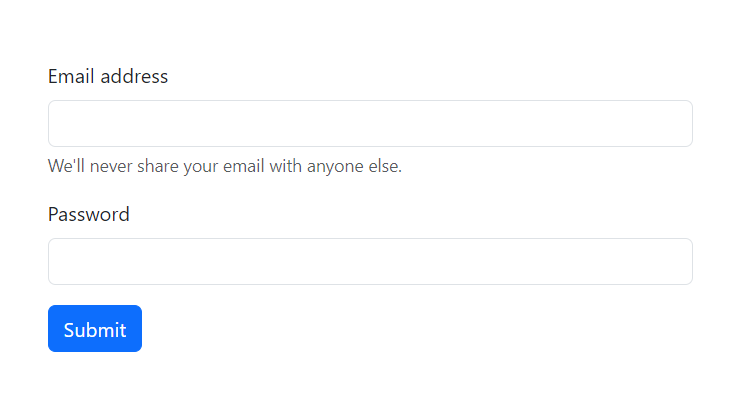
การใช้งานฟอร์มที่มีการแบ่งคอลัมน์ (Form Grid)
ในบางกรณี การจัดการฟอร์มให้มีหลายคอลัมน์สามารถเพิ่มความสะดวกในการกรอกข้อมูลได้มากขึ้น Bootstrap 5 รองรับการจัดคอลัมน์ของฟอร์มโดยใช้ระบบ Grid ของเฟรมเวิร์ก
<form>
  <div class="row mb-3">
    <div class="col">
      <input type="text" class="form-control" placeholder="First name">
    </div>
    <div class="col">
      <input type="text" class="form-control" placeholder="Last name">
    </div>
  </div>
  <button type="submit" class="btn btn-primary">Submit</button>
</form>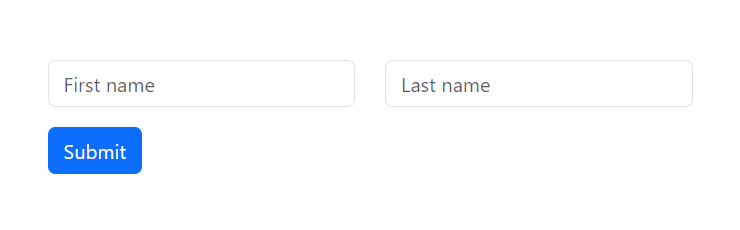
การใช้ฟอร์มแบบ Inline (Inline Form)
ฟอร์มแบบ Inline จะถูกจัดเรียงในแนวนอนแทนการจัดเรียงในแนวตั้ง เหมาะสำหรับกรณีที่ต้องการฟอร์มขนาดเล็กในพื้นที่จำกัด เช่น การค้นหาข้อมูลในเว็บไซต์
<form class="row g-3">
  <div class="col-auto">
    <label for="staticEmail2" class="visually-hidden">Email</label>
    <input type="text" class="form-control" id="staticEmail2" value="[email protected]">
  </div>
  <div class="col-auto">
    <label for="inputPassword2" class="visually-hidden">Password</label>
    <input type="password" class="form-control" id="inputPassword2" placeholder="Password">
  </div>
  <div class="col-auto">
    <button type="submit" class="btn btn-primary mb-3">Confirm identity</button>
  </div>
</form>
การใช้ฟอร์มสำหรับการอัพโหลดไฟล์ (File Upload Form)
การอัพโหลดไฟล์เป็นสิ่งที่พบได้บ่อยในฟอร์มที่ต้องการรับข้อมูลจากผู้ใช้ เช่น การสมัครงานหรือการส่งแบบฟอร์ม
<form>
  <div class="mb-3">
    <label for="formFile" class="form-label">Default file input example</label>
    <input class="form-control" type="file" id="formFile">
  </div>
  <button type="submit" class="btn btn-primary">Upload</button>
</form>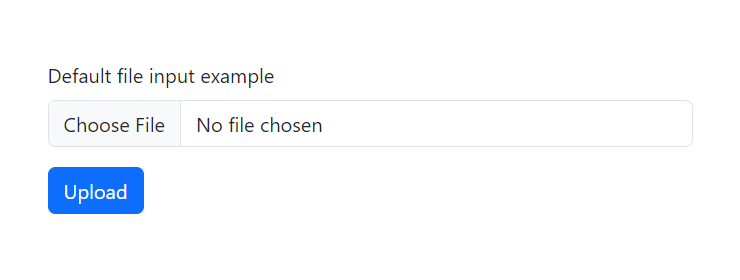
การใช้ฟอร์มแบบ Checkbox และ Radio Button
Checkbox และ Radio Button เป็นตัวเลือกที่ให้ผู้ใช้สามารถเลือกตัวเลือกใดตัวเลือกหนึ่งหรือหลายตัวเลือกได้ การใช้งานใน Bootstrap 5 นั้นทำได้ง่ายเพียงเพิ่มคลาส .form-check
<form>
  <div class="mb-3 form-check">
    <input type="checkbox" class="form-check-input" id="exampleCheck1">
    <label class="form-check-label" for="exampleCheck1">Check me out</label>
  </div>

  <div class="mb-3 form-check">
    <input type="radio" class="form-check-input" id="exampleRadio1" name="exampleRadios" value="option1" checked>
    <label class="form-check-label" for="exampleRadio1">Option 1</label>
  </div>
  <div class="mb-3 form-check">
    <input type="radio" class="form-check-input" id="exampleRadio2" name="exampleRadios" value="option2">
    <label class="form-check-label" for="exampleRadio2">Option 2</label>
  </div>

  <button type="submit" class="btn btn-primary">Submit</button>
</form>
สรุป
การใช้งาน Form ใน Bootstrap 5 มีความยืดหยุ่นสูงและสามารถประยุกต์ใช้ได้หลายรูปแบบ ตั้งแต่ฟอร์มพื้นฐาน ฟอร์มที่มีหลายคอลัมน์ ฟอร์มแบบ Inline ไปจนถึงฟอร์มที่มีการอัพโหลดไฟล์ การใช้ Checkbox และ Radio Button ทำให้การออกแบบและพัฒนาฟอร์มในเว็บไซต์เป็นเรื่องง่ายขึ้น