
ใน Bootstrap 4 เราสามารถจัดกลุ่มปุ่ม (Button Group) เพื่อนำเสนอปุ่มหลายๆ ปุ่มร่วมกันภายในกลุ่มเดียว โดยจะสามารถจัดกลุ่มเป็นแนวนอนหรือแนวตั้งได้ รวมถึงสามารถนำไปประยุกต์ใช้งานในลักษณะต่างๆ เช่น ปุ่มเมนู ปุ่มควบคุมการทำงานต่างๆ หรือใช้ในการสร้าง navigation ได้ ซึ่งการจัดกลุ่มปุ่มใน Bootstrap 4 มีความยืดหยุ่นและง่ายต่อการใช้งานอย่างมาก
วิธีการสร้าง Button Group พื้นฐาน
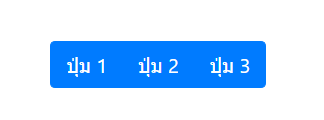
การจัดกลุ่มปุ่มพื้นฐานสามารถทำได้โดยใช้คลาส .btn-group ซึ่งจะทำให้ปุ่มหลายๆ ปุ่มถูกจัดเรียงให้อยู่ในกลุ่มเดียวกัน โดยแต่ละปุ่มจะมีระยะห่างน้อยลง และดูเป็นหนึ่งเดียวกัน
<div class="btn-group" role="group" aria-label="Basic example">
  <button type="button" class="btn btn-primary">ปุ่ม 1</button>
  <button type="button" class="btn btn-primary">ปุ่ม 2</button>
  <button type="button" class="btn btn-primary">ปุ่ม 3</button>
</div>
ผลลัพธ์คือปุ่มทั้งสามปุ่มจะถูกจัดกลุ่มเรียงต่อกันในลักษณะเป็นแถวแนวนอน
Button Group แนวตั้ง
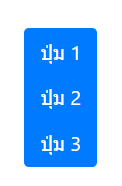
ในกรณีที่ต้องการจัดกลุ่มปุ่มในแนวตั้ง เราสามารถใช้คลาส .btn-group-vertical เพื่อจัดกลุ่มปุ่มในแนวตั้งได้
<div class="btn-group-vertical" role="group" aria-label="Vertical button group">
  <button type="button" class="btn btn-primary">ปุ่ม 1</button>
  <button type="button" class="btn btn-primary">ปุ่ม 2</button>
  <button type="button" class="btn btn-primary">ปุ่ม 3</button>
</div>
ผลลัพธ์คือปุ่มจะถูกจัดเรียงในแนวตั้ง
ปุ่มแบบ Checkbox หรือ Radio Button
หากต้องการใช้ Button Group เพื่อเลือกหลายตัวเลือกหรือใช้ในรูปแบบของ Radio Button เราสามารถใช้คลาส .btn-group-toggle ร่วมกับ input แบบ checkbox หรือ radio ได้
ตัวอย่างการใช้แบบ Checkbox
<div class="btn-group btn-group-toggle" data-toggle="buttons">
  <label class="btn btn-secondary">
    <input type="checkbox" autocomplete="off"> ตัวเลือก 1
  </label>
  <label class="btn btn-secondary">
    <input type="checkbox" autocomplete="off"> ตัวเลือก 2
  </label>
  <label class="btn btn-secondary">
    <input type="checkbox" autocomplete="off"> ตัวเลือก 3
  </label>
</div>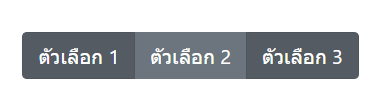
ตัวอย่างการใช้แบบ Radio Button
<div class="btn-group btn-group-toggle" data-toggle="buttons">
  <label class="btn btn-secondary active">
    <input type="radio" name="options" id="option1" autocomplete="off" checked> ตัวเลือก 1
  </label>
  <label class="btn btn-secondary">
    <input type="radio" name="options" id="option2" autocomplete="off"> ตัวเลือก 2
  </label>
  <label class="btn btn-secondary">
    <input type="radio" name="options" id="option3" autocomplete="off"> ตัวเลือก 3
  </label>
</div>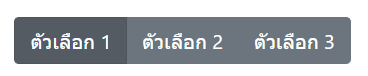
ปุ่มแบบขนาดใหญ่และขนาดเล็ก
เราสามารถเปลี่ยนขนาดของ Button Group ได้ง่ายๆ โดยเพิ่มคลาสขนาดของปุ่มเช่น .btn-lg สำหรับขนาดใหญ่ หรือ .btn-sm สำหรับขนาดเล็ก
<div class="btn-group btn-group-lg" role="group" aria-label="Large button group">
  <button type="button" class="btn btn-primary">ปุ่มใหญ่ 1</button>
  <button type="button" class="btn btn-primary">ปุ่มใหญ่ 2</button>
</div>

<div class="btn-group btn-group-sm" role="group" aria-label="Small button group">
  <button type="button" class="btn btn-primary">ปุ่มเล็ก 1</button>
  <button type="button" class="btn btn-primary">ปุ่มเล็ก 2</button>
</div>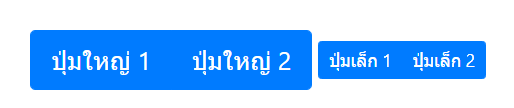
การใช้ Button Group กับ Dropdown
เราสามารถผสมการใช้งาน Button Group ร่วมกับ Dropdown ได้ด้วยการใช้คลาส .dropdown-toggle-split เพื่อสร้างปุ่มที่สามารถเปิดเมนู dropdown ได้
<div class="btn-group">
  <button type="button" class="btn btn-primary">ปุ่ม 1</button>
  <button type="button" class="btn btn-primary dropdown-toggle dropdown-toggle-split" data-toggle="dropdown" aria-haspopup="true" aria-expanded="false">
    <span class="sr-only">Toggle Dropdown</span>
  </button>
  <div class="dropdown-menu">
    <a class="dropdown-item" href="#">ตัวเลือก 1</a>
    <a class="dropdown-item" href="#">ตัวเลือก 2</a>
  </div>
</div>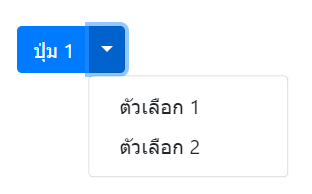
การจัดกลุ่มปุ่มหลายกลุ่ม
หากต้องการจัดกลุ่มปุ่มหลายกลุ่มในบรรทัดเดียวกัน เราสามารถใช้คลาส .btn-toolbar ซึ่งจะช่วยจัดกลุ่มปุ่มหลายกลุ่มให้อยู่ในแถวเดียวกันได้
<div class="btn-toolbar" role="toolbar" aria-label="Toolbar with button groups">
  <div class="btn-group mr-2" role="group" aria-label="First group">
    <button type="button" class="btn btn-primary">ปุ่ม 1</button>
    <button type="button" class="btn btn-primary">ปุ่ม 2</button>
  </div>
  <div class="btn-group mr-2" role="group" aria-label="Second group">
    <button type="button" class="btn btn-secondary">ปุ่ม 3</button>
    <button type="button" class="btn btn-secondary">ปุ่ม 4</button>
  </div>
</div>
สรุป
การใช้งาน Button Group ใน Bootstrap 4 เป็นเครื่องมือที่มีประโยชน์สำหรับการจัดกลุ่มปุ่มต่างๆ ให้ดูเป็นระเบียบและสามารถเลือกใช้งานในหลากหลายรูปแบบตามความต้องการ ไม่ว่าจะเป็นการจัดเรียงแนวนอน แนวตั้ง หรือการรวมปุ่มกับ dropdown ซึ่งทั้งหมดนี้สามารถนำไปประยุกต์ใช้งานได้ง่ายและยืดหยุ่นตามความต้องการของผู้พัฒนาเว็บ