
Filter หรือฟังก์ชันการกรองข้อมูลใน Bootstrap 4 ใช้เพื่อช่วยผู้ใช้กรองเนื้อหาหรือข้อมูลที่ต้องการให้แสดงผลได้อย่างรวดเร็ว
การสร้าง Filter เบื้องต้น
สำหรับการสร้าง Filter เราสามารถใช้ส่วนประกอบเช่น form, input, และ button ซึ่งเป็นองค์ประกอบพื้นฐานในการรับข้อมูลจากผู้ใช้ นอกจากนี้ยังสามารถปรับใช้คลาสของ Bootstrap เพื่อให้รูปแบบการแสดงผลสวยงามยิ่งขึ้น
<form class="form-inline">
  <input class="form-control mr-sm-2" type="search" placeholder="Search" aria-label="Search">
  <button class="btn btn-outline-success my-2 my-sm-0" type="submit">Search</button>
</form>
ในตัวอย่างข้างต้น เราได้สร้างฟอร์มค้นหาข้อมูลแบบเบื้องต้น ซึ่งประกอบด้วยช่อง input และปุ่ม Search ที่ผู้ใช้สามารถกรอกข้อมูลที่ต้องการค้นหาได้
การสร้าง Filter สำหรับ Table
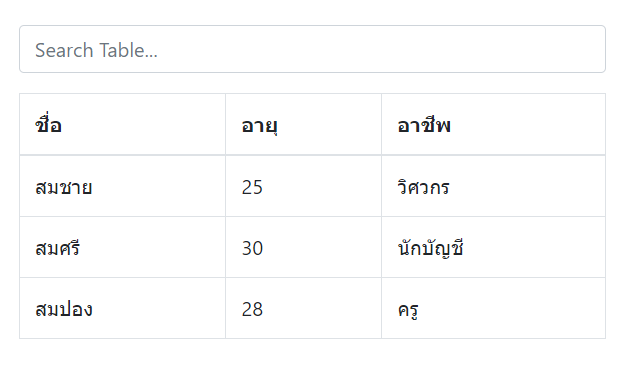
หากต้องการสร้าง Filter สำหรับการกรองข้อมูลในตาราง เราสามารถใช้การค้นหาภายใน table โดยการรับค่าจาก input และใช้ JavaScript ในการกรองข้อมูล
<input class="form-control mb-3" id="searchTable" type="text" placeholder="Search Table...">

<table class="table table-bordered">
  <thead>
    <tr>
      <th>ชื่อ</th>
      <th>อายุ</th>
      <th>อาชีพ</th>
    </tr>
  </thead>
  <tbody id="myTable">
    <tr>
      <td>สมชาย</td>
      <td>25</td>
      <td>วิศวกร</td>
    </tr>
    <tr>
      <td>สมศรี</td>
      <td>30</td>
      <td>นักบัญชี</td>
    </tr>
    <tr>
      <td>สมปอง</td>
      <td>28</td>
      <td>ครู</td>
    </tr>
  </tbody>
</table>
เราสามารถใช้ JavaScript เพื่อทำให้การค้นหาในตารางทำงานได้
document.getElementById("searchTable").addEventListener("keyup", function() {
  var value = this.value.toLowerCase();
  var rows = document.querySelectorAll("#myTable tr");

  rows.forEach(function(row) {
    row.style.display = row.textContent.toLowerCase().includes(value) ? "" : "none";
  });
});
ในตัวอย่างนี้ เมื่อต้องการค้นหาชื่อหรือข้อมูลอื่นๆ ในตาราง ระบบจะกรองข้อมูลและแสดงเฉพาะแถวที่ตรงกับสิ่งที่ผู้ใช้พิมพ์
การสร้าง Filter ด้วย Dropdown
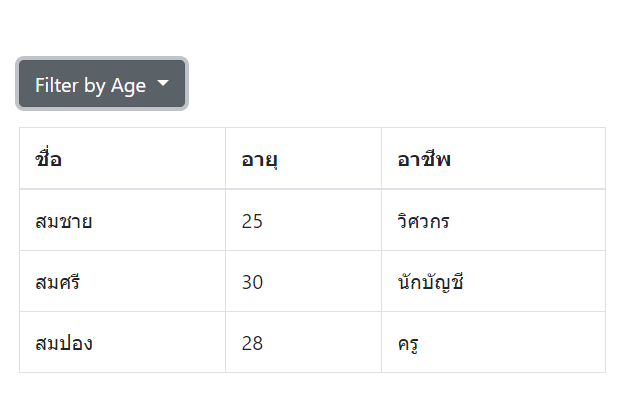
การสร้าง Filter ที่ซับซ้อนขึ้น สามารถทำได้โดยการใช้ Dropdown ซึ่งให้ผู้ใช้เลือกตัวเลือกที่ต้องการกรองข้อมูล
<div class="dropdown">
  <button class="btn btn-secondary dropdown-toggle" type="button" id="dropdownMenuButton" data-toggle="dropdown" aria-haspopup="true" aria-expanded="false">
    Filter by Age
  </button>
  <div class="dropdown-menu" aria-labelledby="dropdownMenuButton">
    <a class="dropdown-item" href="#" data-filter="25">25</a>
    <a class="dropdown-item" href="#" data-filter="30">30</a>
    <a class="dropdown-item" href="#" data-filter="28">28</a>
  </div>
</div>

<table class="table table-bordered mt-3">
  <thead>
    <tr>
      <th>ชื่อ</th>
      <th>อายุ</th>
      <th>อาชีพ</th>
    </tr>
  </thead>
  <tbody id="ageFilterTable">
    <tr data-age="25">
      <td>สมชาย</td>
      <td>25</td>
      <td>วิศวกร</td>
    </tr>
    <tr data-age="30">
      <td>สมศรี</td>
      <td>30</td>
      <td>นักบัญชี</td>
    </tr>
    <tr data-age="28">
      <td>สมปอง</td>
      <td>28</td>
      <td>ครู</td>
    </tr>
  </tbody>
</table>
จากนั้นสามารถใช้ JavaScript เพื่อกรองข้อมูลในตารางตามอายุที่เลือกจาก Dropdown
document.querySelectorAll('.dropdown-item').forEach(function(item) {
  item.addEventListener('click', function() {
    var filterValue = this.getAttribute('data-filter');
    var rows = document.querySelectorAll('#ageFilterTable tr');

    rows.forEach(function(row) {
      row.style.display = row.getAttribute('data-age') === filterValue ? '' : 'none';
    });
  });
});
เมื่อผู้ใช้เลือกอายุจาก Dropdown ระบบจะกรองข้อมูลในตารางและแสดงเฉพาะข้อมูลที่ตรงกับอายุที่เลือก
การสร้าง Filter ด้วย Checkbox
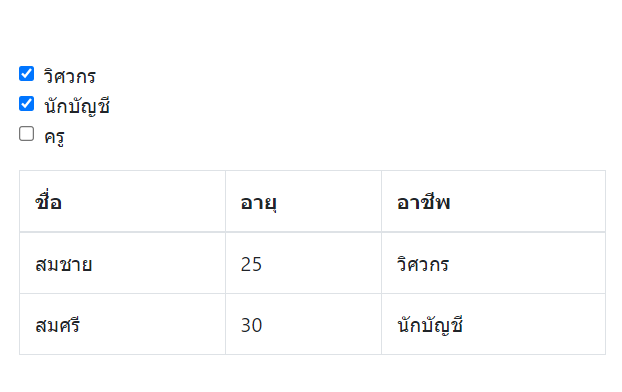
การใช้ Checkbox เป็นอีกหนึ่งวิธีที่ผู้ใช้สามารถเลือกเงื่อนไขการกรองหลายตัวเลือกได้
<div class="form-check">
  <input class="form-check-input" type="checkbox" value="Engineer" id="engineerCheck">
  <label class="form-check-label" for="engineerCheck">
    วิศวกร
  </label>
</div>
<div class="form-check">
  <input class="form-check-input" type="checkbox" value="Accountant" id="accountantCheck">
  <label class="form-check-label" for="accountantCheck">
    นักบัญชี
  </label>
</div>
<div class="form-check">
  <input class="form-check-input" type="checkbox" value="Teacher" id="teacherCheck">
  <label class="form-check-label" for="teacherCheck">
    ครู
  </label>
</div>

<table class="table table-bordered mt-3">
  <thead>
    <tr>
      <th>ชื่อ</th>
      <th>อายุ</th>
      <th>อาชีพ</th>
    </tr>
  </thead>
  <tbody id="checkboxFilterTable">
    <tr data-job="Engineer">
      <td>สมชาย</td>
      <td>25</td>
      <td>วิศวกร</td>
    </tr>
    <tr data-job="Accountant">
      <td>สมศรี</td>
      <td>30</td>
      <td>นักบัญชี</td>
    </tr>
    <tr data-job="Teacher">
      <td>สมปอง</td>
      <td>28</td>
      <td>ครู</td>
    </tr>
  </tbody>
</table>
JavaScript สำหรับการกรองข้อมูลด้วย Checkbox
document.querySelectorAll('.form-check-input').forEach(function(checkbox) {
  checkbox.addEventListener('change', function() {
    var checkedValues = Array.from(document.querySelectorAll('.form-check-input:checked')).map(function(checkbox) {
      return checkbox.value;
    });

    var rows = document.querySelectorAll('#checkboxFilterTable tr');
    rows.forEach(function(row) {
      row.style.display = checkedValues.includes(row.getAttribute('data-job')) ? '' : 'none';
    });
  });
});
ในกรณีนี้ ผู้ใช้สามารถเลือกกรองข้อมูลในตารางตามอาชีพผ่านทาง Checkbox ได้หลายตัวเลือก
สรุป
การใช้งาน Filter ด้วย Bootstrap 4 มีหลายรูปแบบที่สามารถประยุกต์ใช้งานได้ตามความต้องการ ไม่ว่าจะเป็นการกรองข้อมูลผ่าน input, dropdown, หรือ checkbox ทั้งนี้สามารถนำไปปรับใช้ให้เหมาะสมกับการออกแบบระบบของแต่ละเว็บไซต์เพื่ออำนวยความสะดวกให้แก่ผู้ใช้